Page Plus Cellular APN settings are crucial in connecting to the network and access to network services and the internet via 4G and 5G cellular networks. Successful internet connection requires a data plan and users to be within network coverage. Page Plus Cellular uses the Verizon network infrastructure to provide coverage in the United States.
APN is essentially the name of the gateway on the network provider, but this comes with a number of other settings. Some of these settings include the type of APN, the protocol in use and MMS settings. Set up your APN below for iPhone / iOS and Android. You can adapt them to any other operating system if you use one of those rare phones.

Android Devices
APN Settings on Android Phones
Access the APN setting page on Android by navigating to:
- Settings
- Connections / Network & internet / Wireless & internet / More
- Mobile networks / SIMs then select Page Plus Cellular
- Access point names
- Add / +
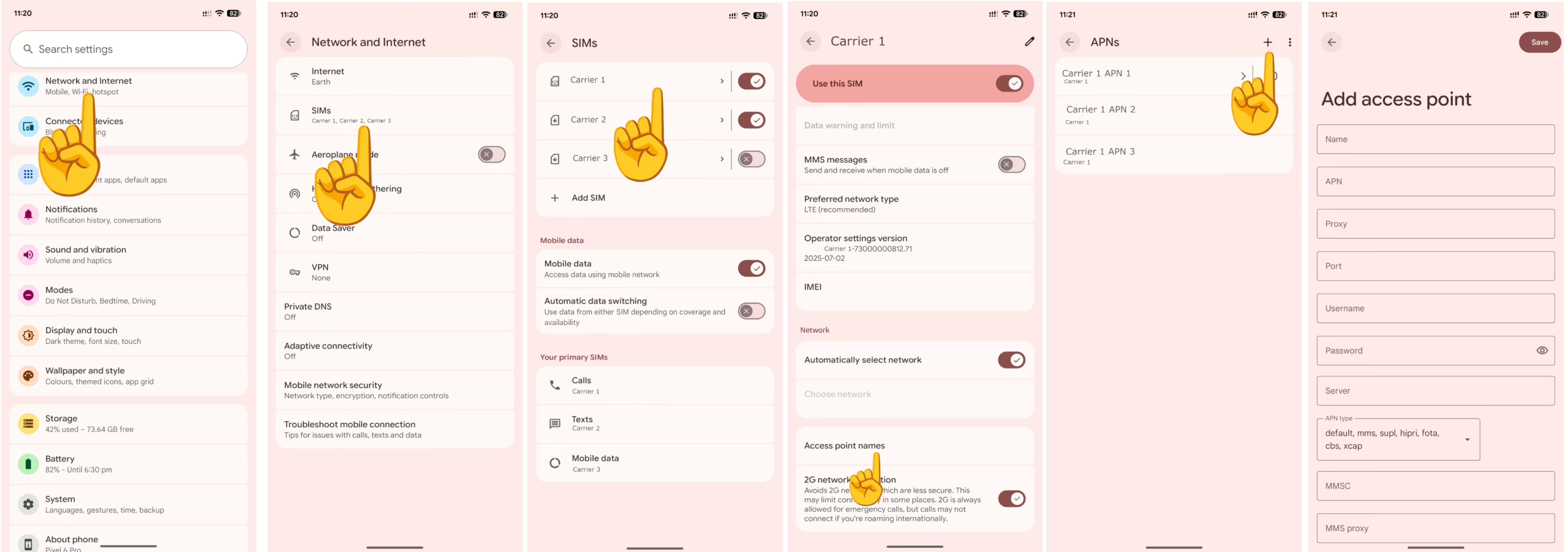
Input the Page Plus Cellular APN settings below on your Android device.
Page Plus Cellular APN Settings for Android Devices
Other fields not indicated below are left blank or with their default setting.
- Name: Page Plus Cellular
- APN: vzwinternet
- MMS Port: 80
- MCC: 470
- MNC: 02
- APN type: default,mms,supl
- APN protocol: IPv4/IPv6
- APN roaming protocol: IPv4/IPv6
Save the setting by clicking the three menu buttons at the top then select Page Plus Cellular as the active APN.
Apple iPhone / iOS
APN Settings on iPhone / iOS
APN settings page on an iPhone can be located by navigating to:
- Settings
- Cellular / Mobile Data / Mobile Service
- Cellular Data Network / Mobile Data Network
Input the Page Plus Cellular APN settings below for iPhones.
Page Plus Cellular APN Settings for iPhone
Leave the username and password fields blank.
- APN: vzwinternet
- Username:
- Password:
Save the settings then turn off and on the mobile data.